Register a Competitor
Before you Begin
You'll need one or more competitors added to your account before you can register for a competition. You can follow our guide for adding competitors to your account here.
Register for an Event
Navigating to Registration
To register for a specific event, navigate to the home page and find the card for that event.
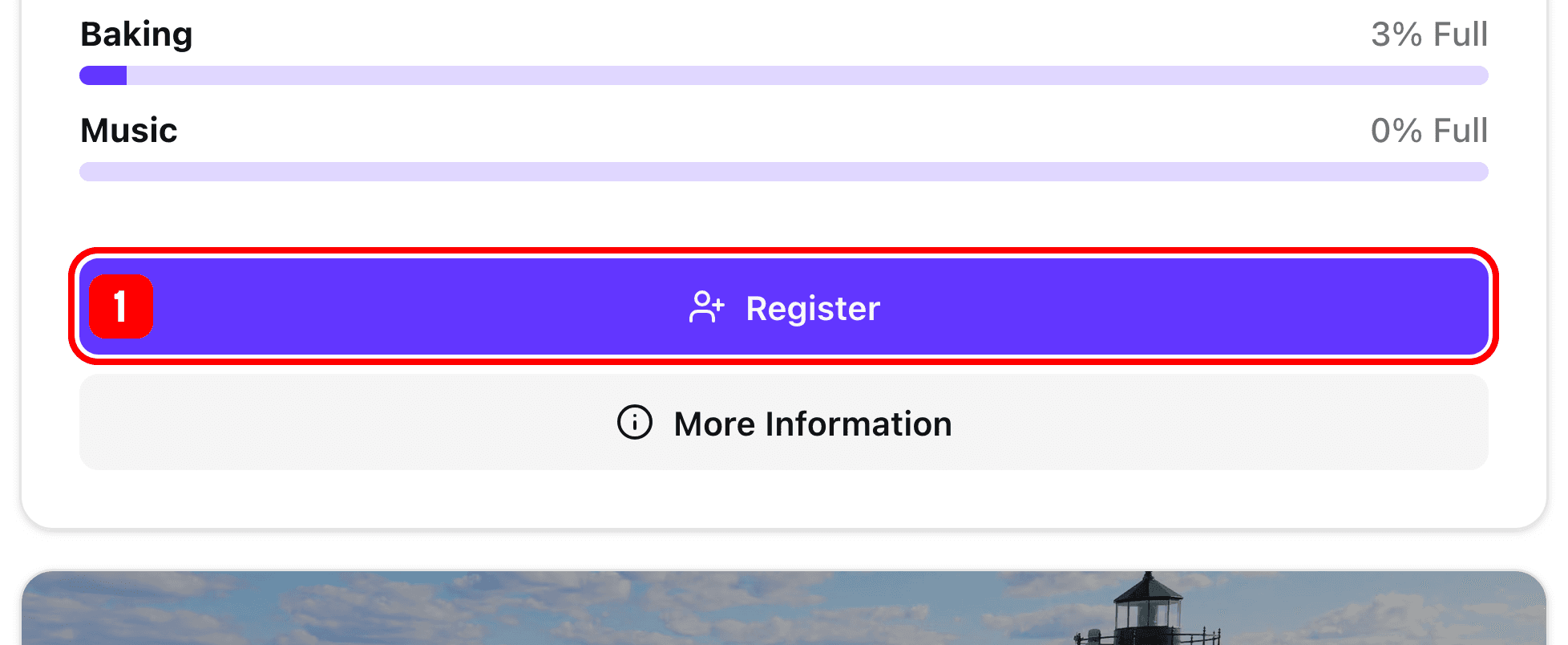
- Use the "Register" button on that event's card to navigate to the register page.
Alternatively, if you would like to see more information for that event, use the "More Information" button instead.
Add a Competitor
Next you'll need to add all the competitors you want to register.
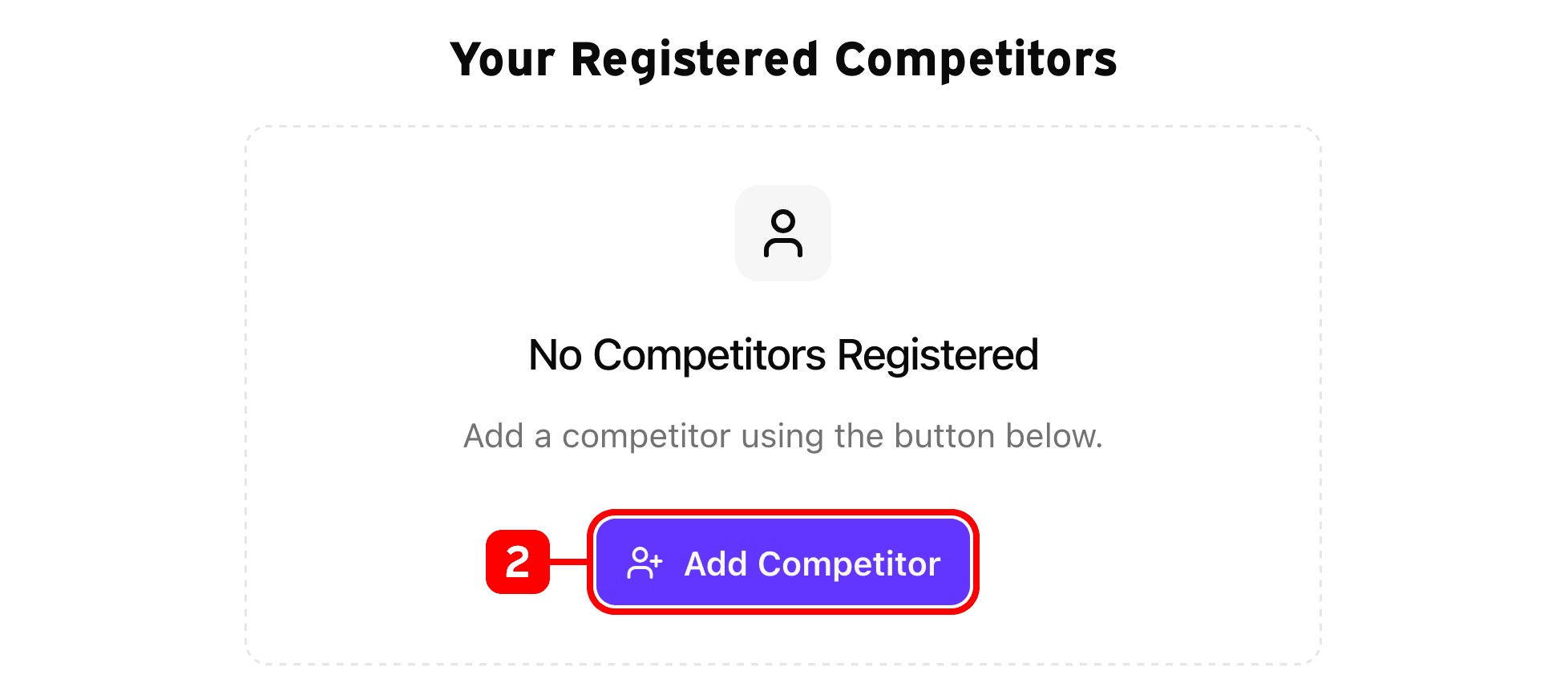
- Use the "Add Competitor" button to show the competitor form.
If there are no competitors associated with your account, the button will navigate you to page for adding competitors to your account.
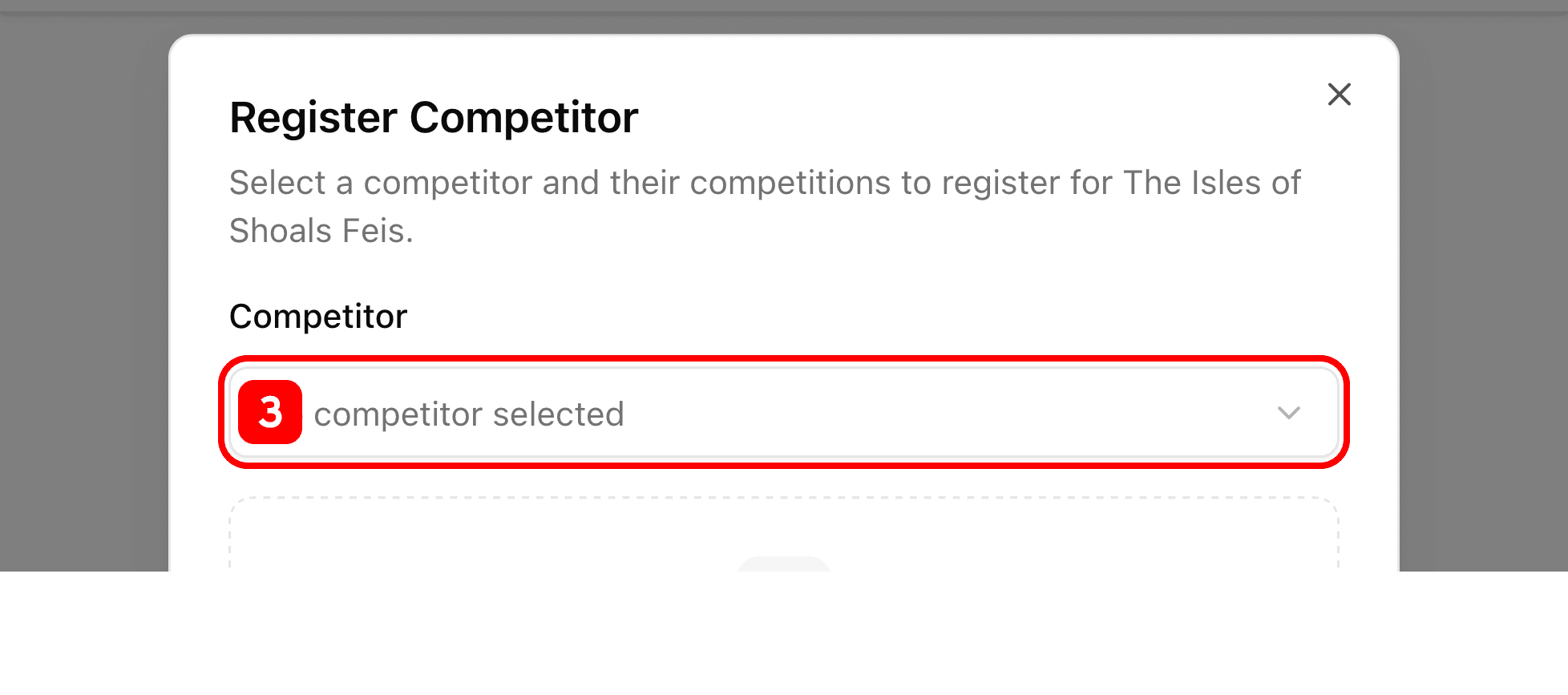
- Use the dropdown to select the competitor to register.
Select Competitions
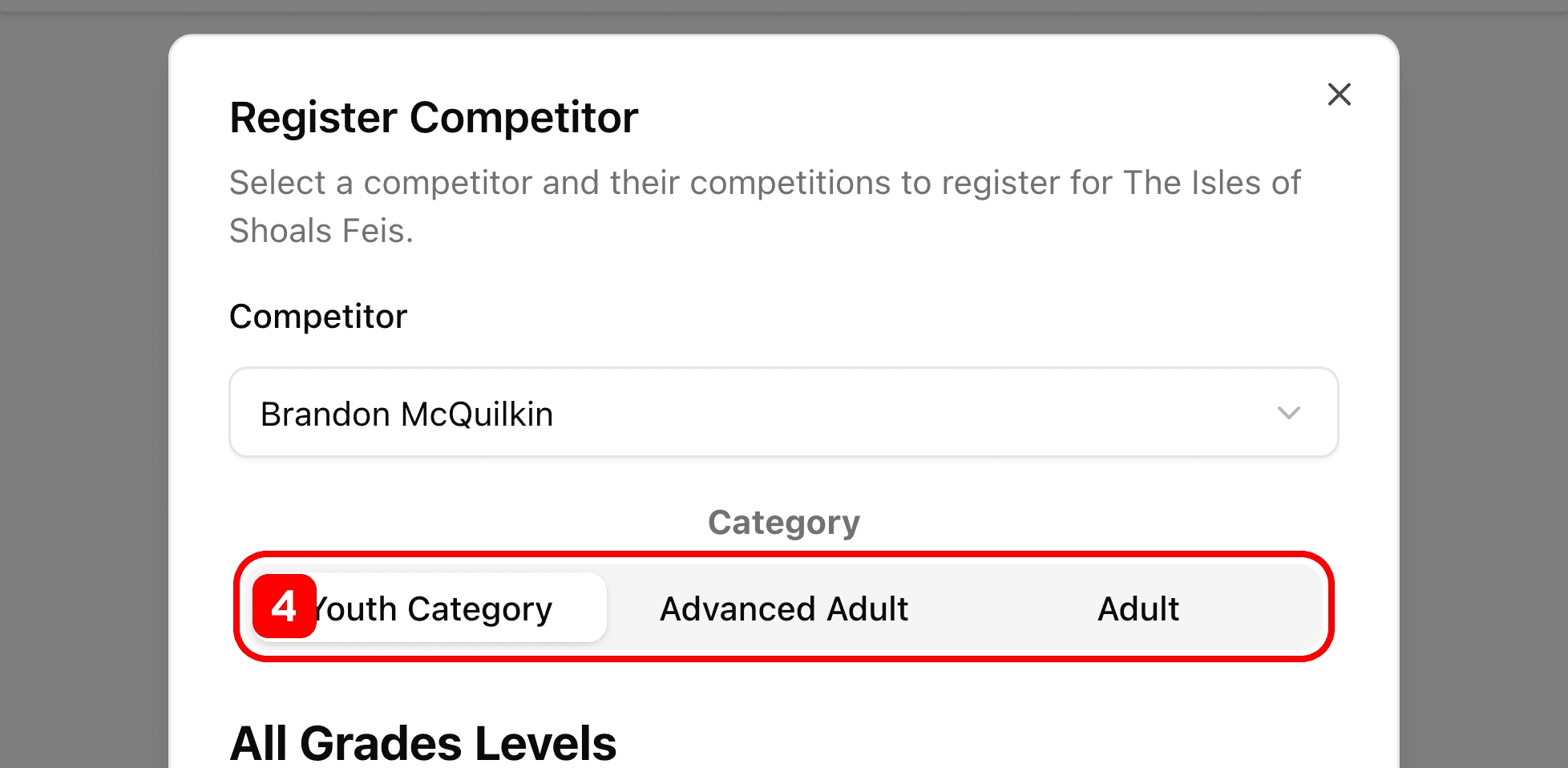
- Now use the category switcher to select your competitor's category. There may be one or more tabs visible.
- If you don't know what this is and you're under the age of 18, select "Youth".
- If you don't know what this is and your're an adult, you should ask your teacher for guidance.
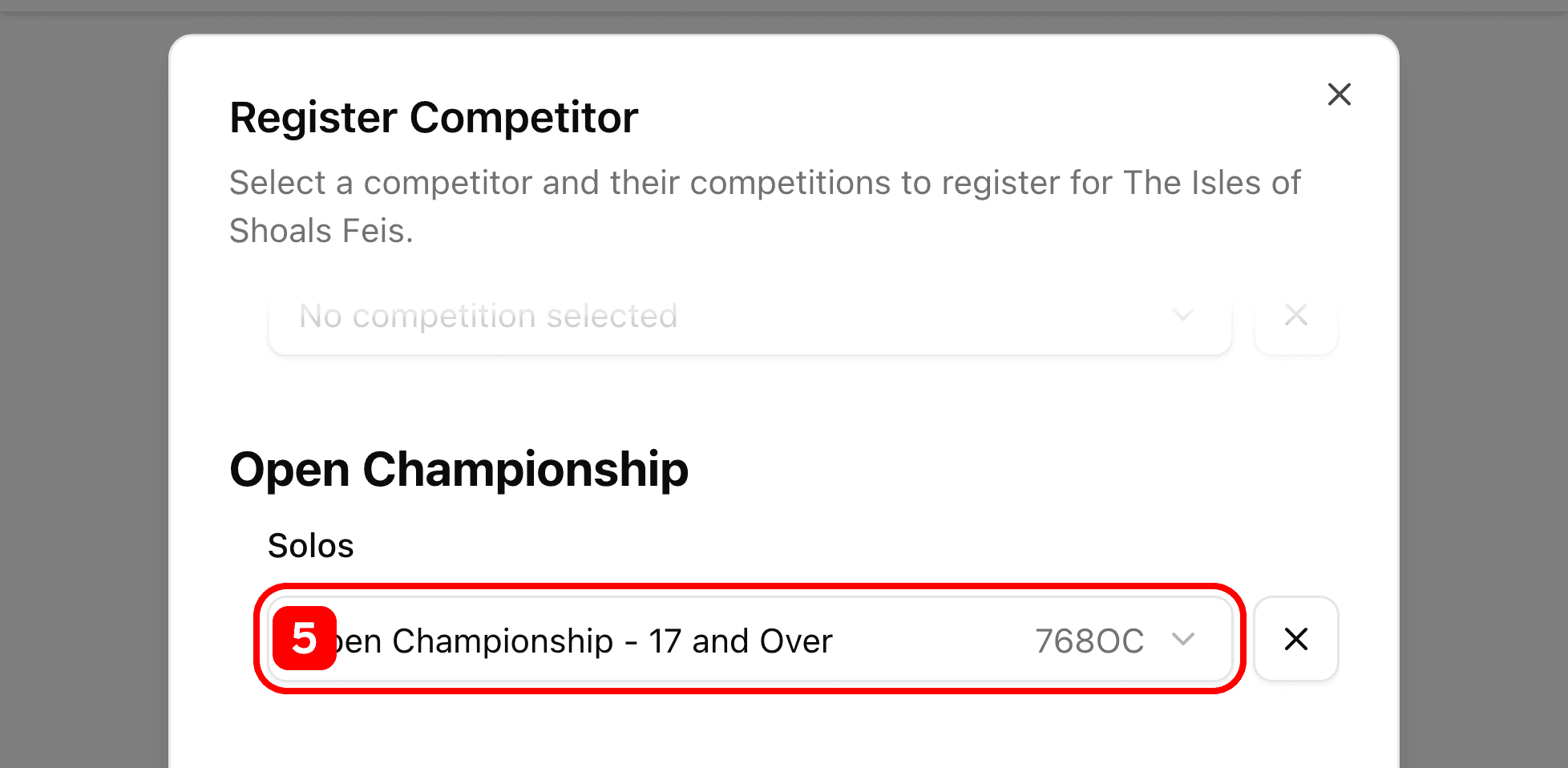
- Use the dropdowns to select the competitions you want to register the competitor for. The system automatically selects the correct age group for the competitor.
- To remove a competition, use the "X" button next to the competition.
Save Selections
You'll need to save the competitions for each competitor separately.
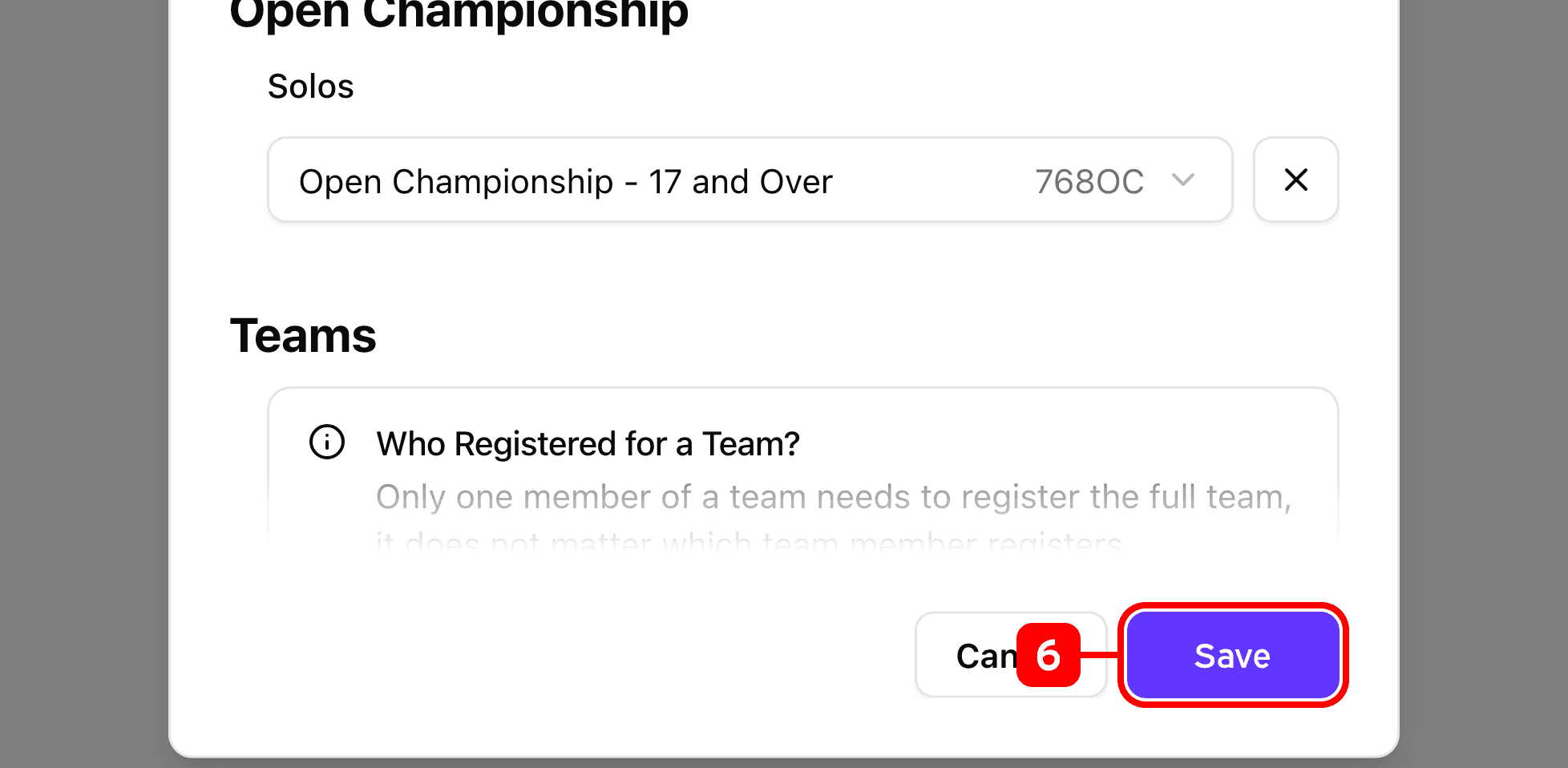
- Use the "Save" button to save the information for the current competitor.
- If editing a competitor, this button will say "Update" instead.
Registration Summary
After saving your competitor, you'll be shown a summary of your selections.
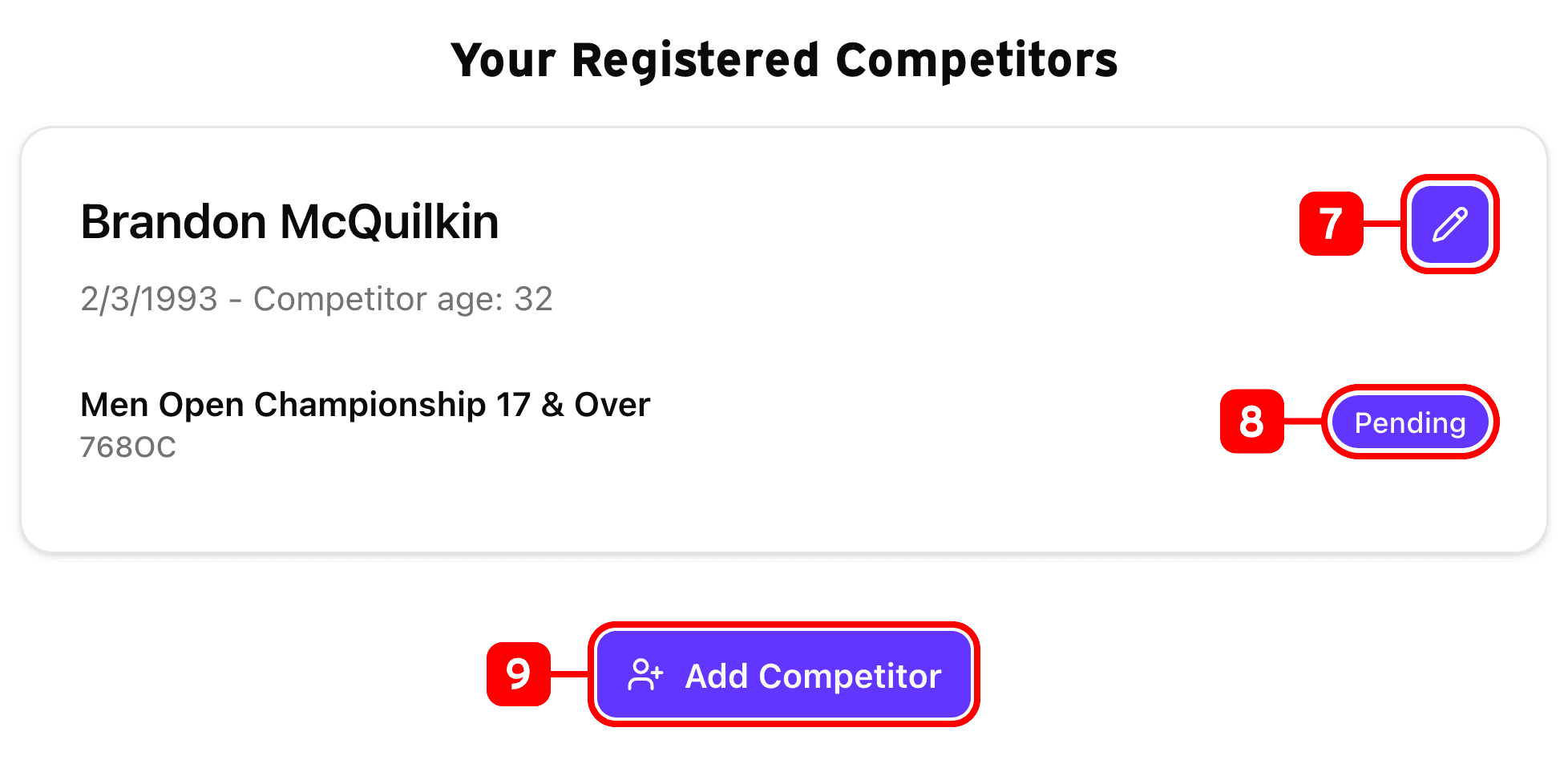
- You can use the edit button to show the select competitions form to make changes to each competitor.
- Each competition will have a badge describing the competition's registration state.
- Pending: The competition has been added, but the competitor is not registered for the competition. You'll need to complete checkout to register for the event, even if the amount is $0.00.
- Registered: The competitor is currently registered for the event.
- Pending Delete: The competition will be removed from the competitor once checkout is completed.
- Use the "Add Competitor" button to register additional competitors for the current event.
Complete Payment
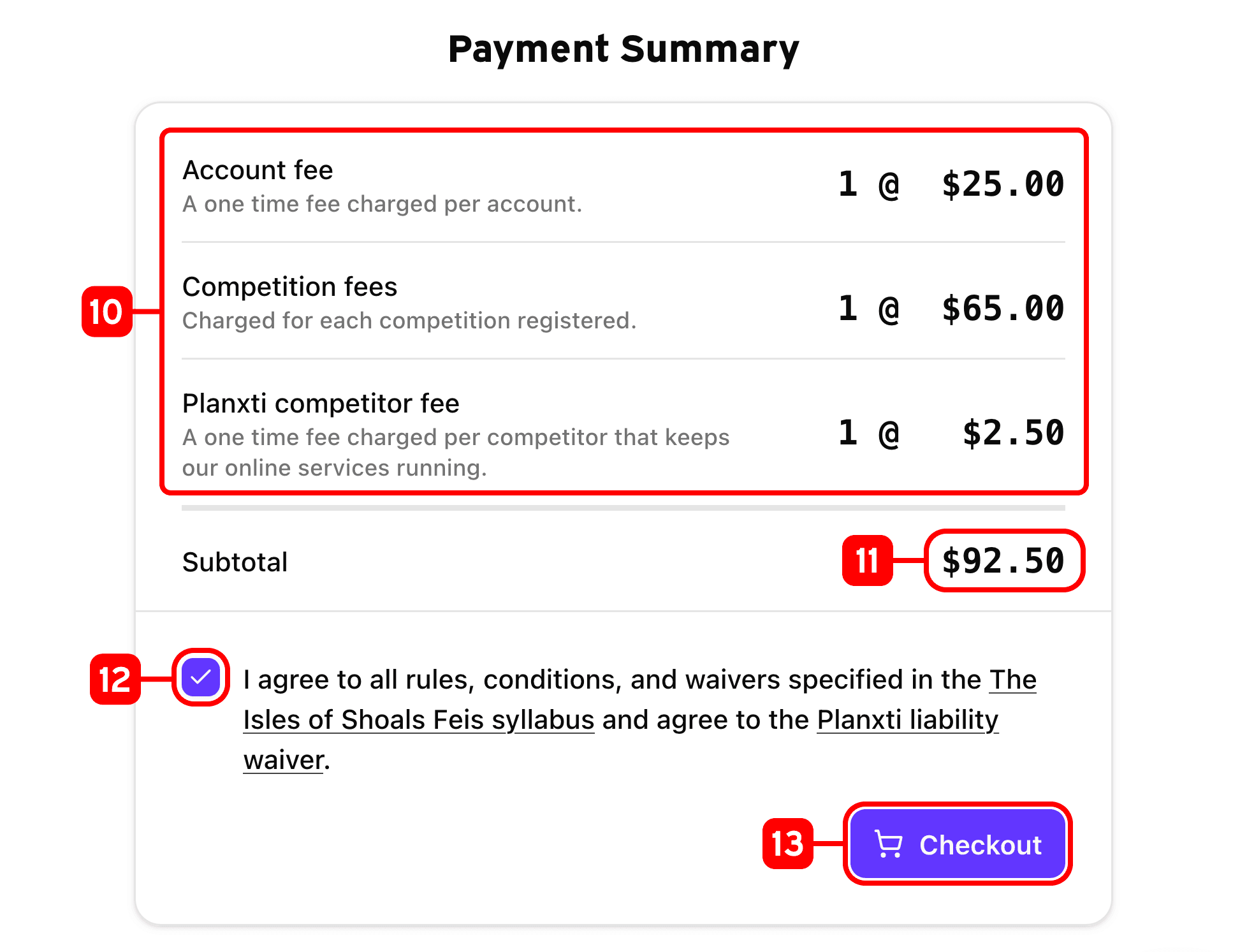
- This is your payment summary. All charges are listed and described here.
- This is your subtotal, the amount you will pay before any taxes are applied.
- To be able to check out, you'll need to agree to linked rules and policies by checking the box.
- Checkout securely through Stripe to complete your registration.
Finished
Once you complete checkout, Stripe will send a receipt to your email. You'll also be redirected to your completed registration summary.
Updating a Competitor's Registration
To update a competitor's registration, navigate to the registration page for the event as outlined earlier on this page and edit the competitor as described here: Registration Summary