Managing Competitors
Adding Competitors
To add a competitor head to your account competitors page, or follow the manual steps below.
Create a Competitor
If you already have a competitor, this button is at the bottom of the page.

- Use the "New Competitor" button to begin creating a new competitor.
Competitor Name
You'll now fill out a form to collect all the information Planxti needs to register your competitor for competitions. This first section is your competitor's name.
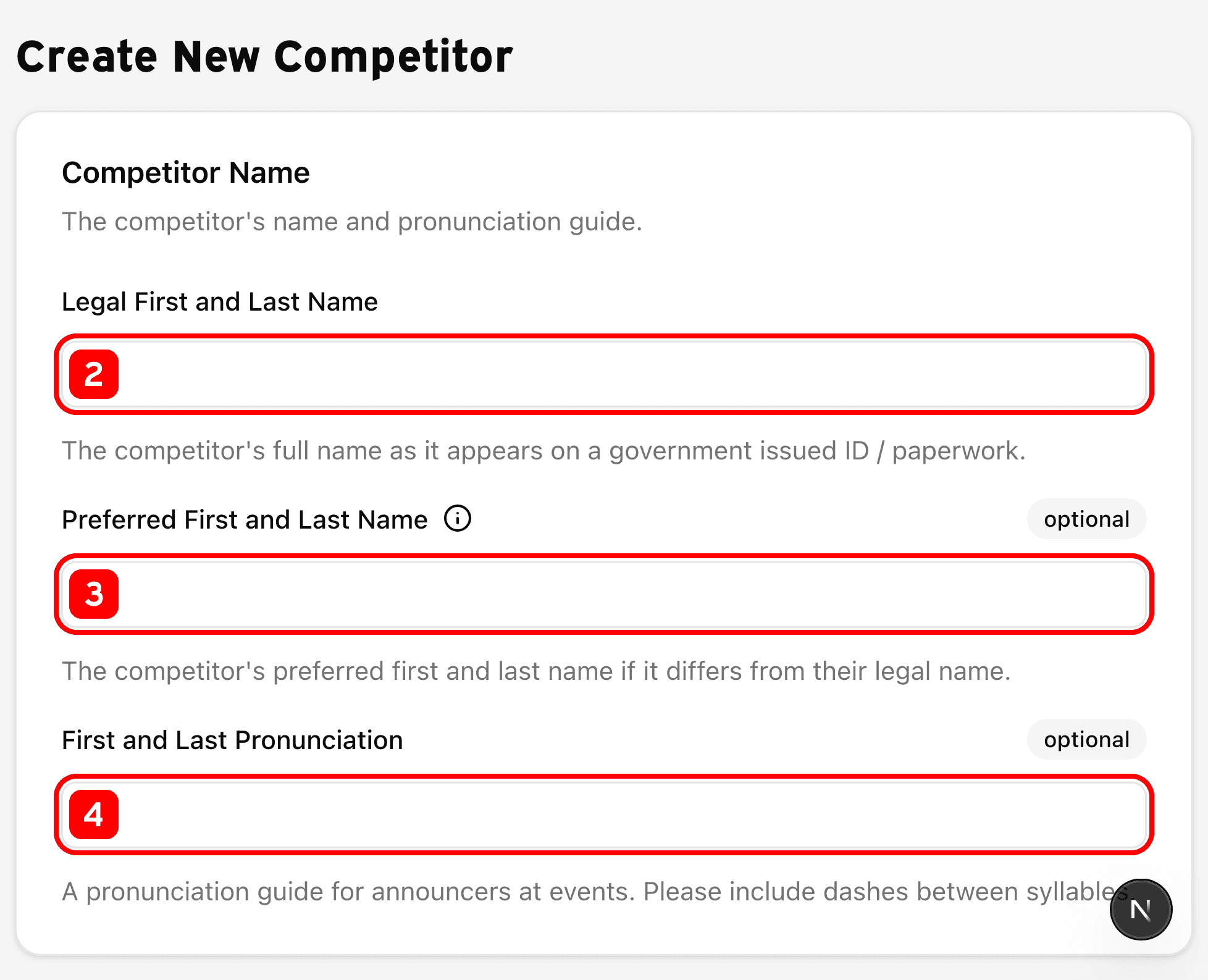
- Fill in the competitors legal first and last name.
- The competitor's middle name is not needed.
- If the competitor would prefer a name different from their legal name, enter it here.
- Be sure to include their preferred first and last name.
- If the competitor's name is mispronounced often, add a pronunciation guide for announcers.
- Be sure to include the pronunciation of their preferred first and last name.
Demographic information
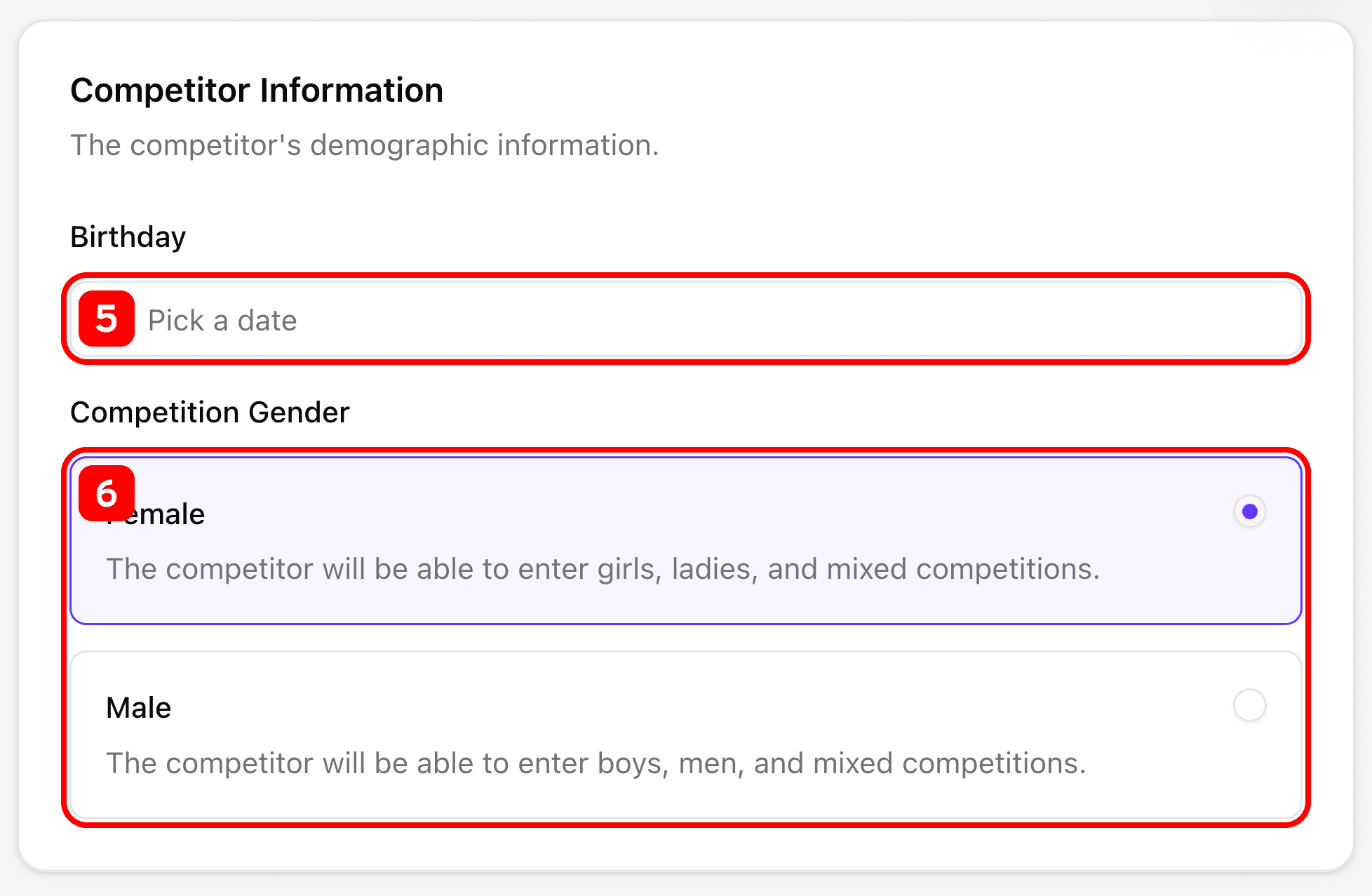
- Enter the competitor's birthday.
- Please make sure it's correct before continuing, we use the competitor's birthday to determine what age groups they are eligible for.
- Enter the competitor's gender.
- We use this to determine which competition the competitor is eligible for if there competitions specific to girls/ladies and boys/men.
School Information
If your school is not listed, please reach out using our contact form.
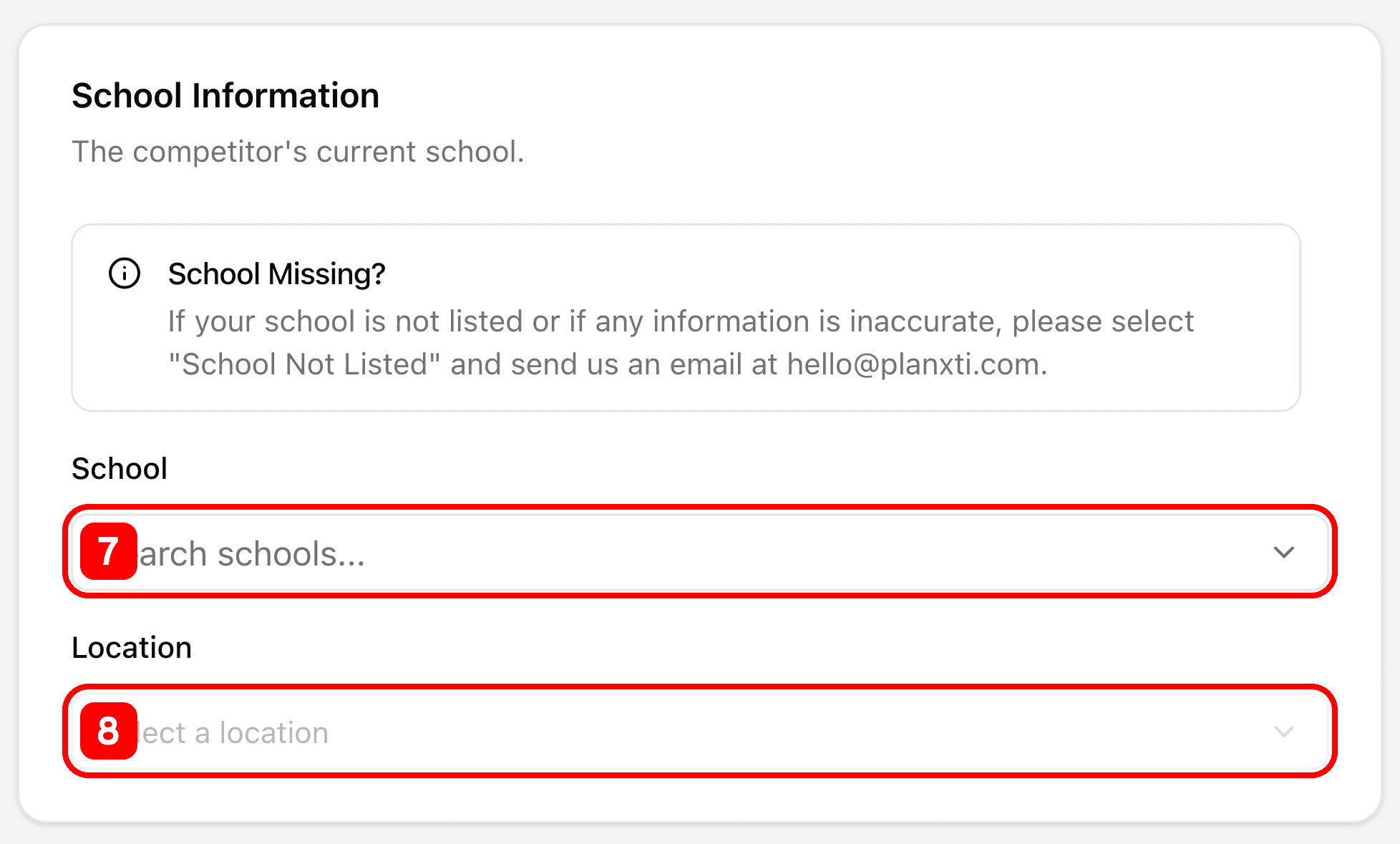
- Search and select the competitor's school.
- Select the competitor's location.
- Most schools only have one location. If your school has more than one location, make sure to select the correct one.
Privacy Information
All event staff (and Planxti) will have access to a competitors information regardless of these settings.
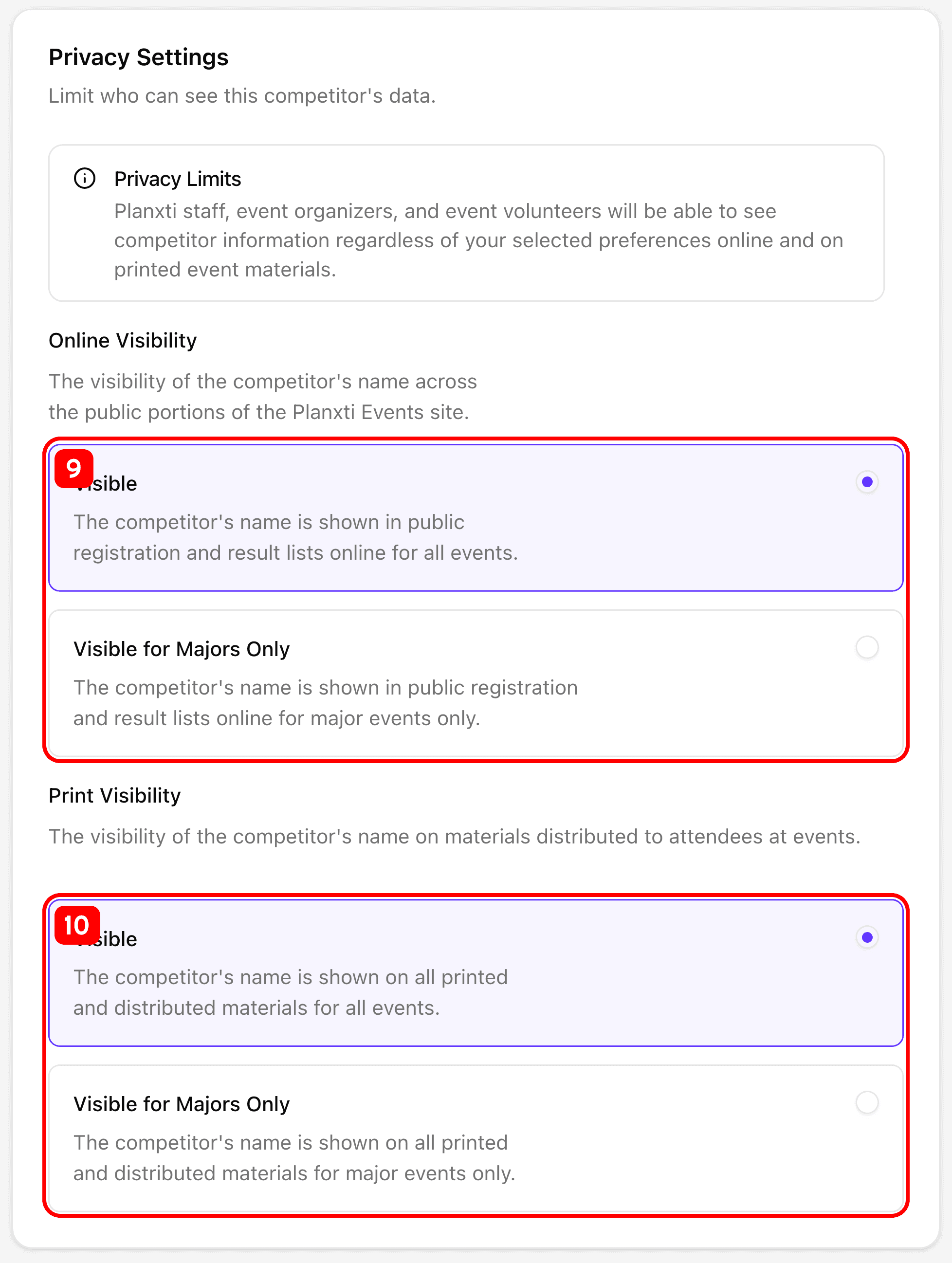
- Set the competitor's online visibility.
- Manages their visibility for online registration lists and results.
- Set the competitor's visibility on "at event" printed materials.
Save
Make sure to save the competitor to your account.

- Use the "Create Competitor" button to save the competitor to your account.
Finished!
Now that you have added a competitor to your account, you can head to the home page to register for an event. If you need to register another competitor first, just use the button at the bottom of the competitor list to repeat this process.
Editing Competitors
To add a competitor head to your account competitors page, or follow the manual steps below.
Select the Competitor
You'll need to navigate to the page of the competitor you want to edit.
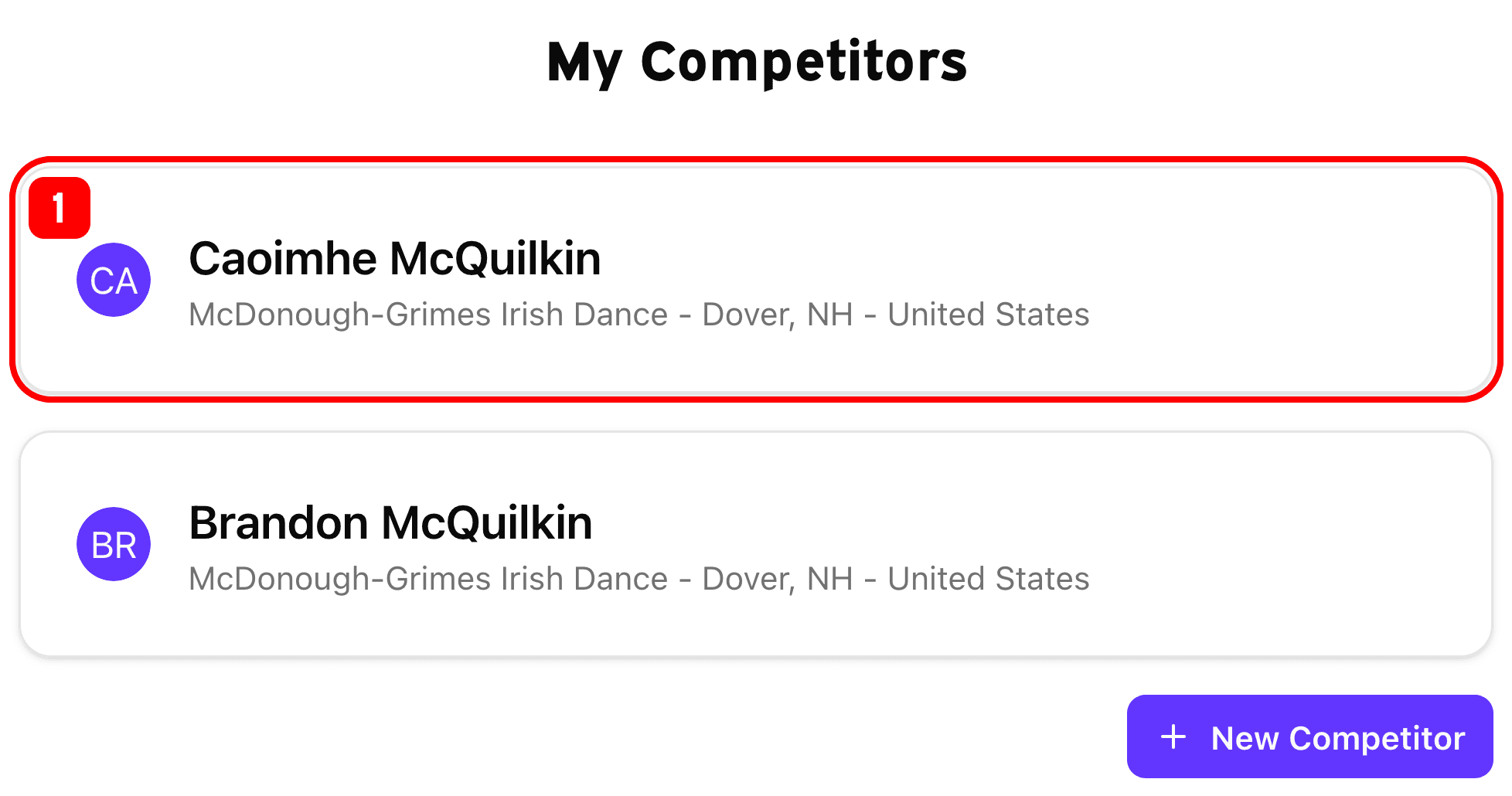
- Select the competitor you wish to edit to navigate to their page.

- Use the "Update Competitor" button at the bottom of their page to open the competitor editor.
- Follow the instructions for creating a competitor from the Competitor Name section. Update the necessary fields of the form and save the changes.